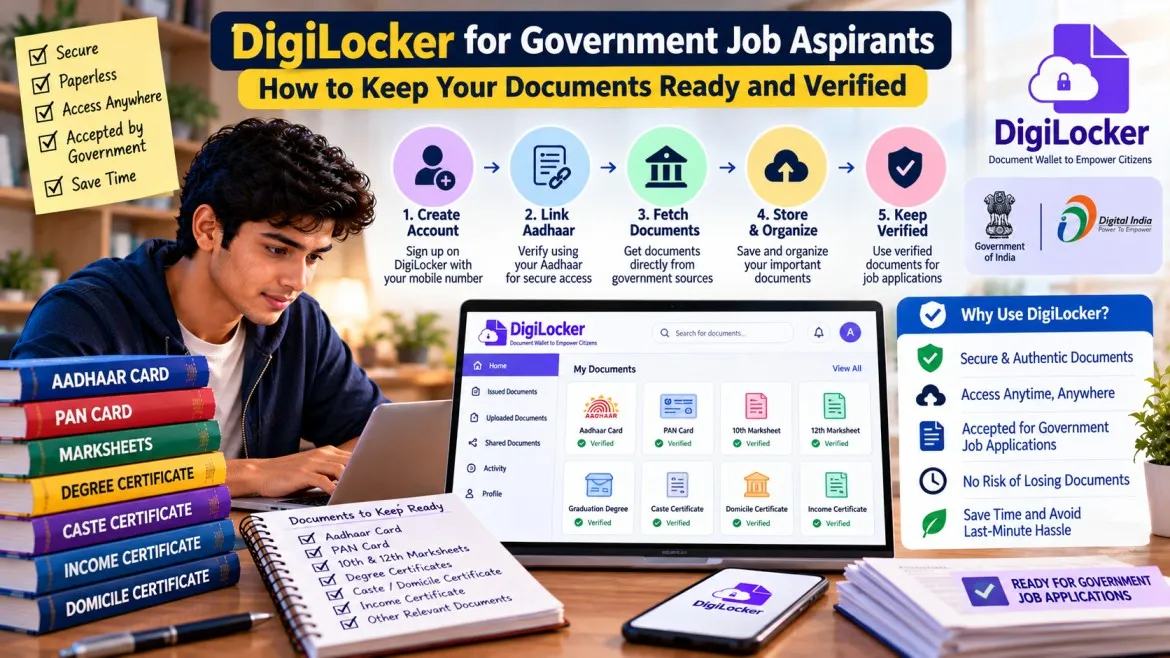
Every government job application depends on documents: marksheets, certificates, identity proof and more. Many candidates lose time looking for papers at the last minute, or upload files that do not match. DigiLocker, a free government service, can help you keep your documents organised and ready. This guide explains how it works and how to use it safely.
What is DigiLocker?
DigiLocker is a Government of India service from the Ministry of Electronics and Information Technology (MeitY), under the Digital India programme. It provides a digital wallet where you can access authentic documents issued by government departments and institutions, such as boards and universities, in electronic form.
The official website is digilocker.gov.in, and it also has a mobile app.
Issued documents vs uploaded documents
This is the most important thing to understand.
| Type | What it is | Legal status |
|---|---|---|
| Issued documents | Documents pushed or fetched directly from the issuing authority, such as a board or department | Deemed at par with original physical documents under the IT rules |
| Uploaded documents | Files you scan and upload yourself to your own storage area | Not treated as valid original documents |
DigiLocker's own information says that documents in the Issued Documents section are treated as equal to the physical originals, while documents you upload to your own drive are not. So if you only scan a certificate and upload it, you have a backup copy, not an official digital original.
Why DigiLocker helps government job aspirants
- Documents in one place. You can access your issued documents on your phone when you need them.
- Less risk of loss. If a paper certificate is damaged or lost, the digital issued copy is still available, as long as your issuer has made it available.
- Easier application and verification. A government circular encourages departments to integrate DigiLocker with their online applications so that citizens can fetch supporting documents directly, instead of uploading them again. Some recruitment portals may already offer this, so check each notification.
- Sharing with consent. DigiLocker asks for your permission before sharing your issued documents with someone else.
How to get started
- Open the official DigiLocker website or install the official app from a trusted app store.
- Sign up with your mobile number and complete the identity verification steps shown in the app.
- Set a strong password or PIN that you do not share.
- Go to the Issued Documents section and look for your education certificates, identity documents and any other documents from available issuers.
- If a document is not listed, check whether your board, university or department has made it available on DigiLocker, and contact the issuer if needed.
The list of available documents depends on what each issuing authority has uploaded, so some documents may not be available.
Check your documents before you apply
Make this checklist before you fill out any application:
- Is your name spelled the same on all your certificates and in your identity proof?
- Does your date of birth match everywhere?
- Are your category or domicile certificates current, if the recruitment asks for them?
- Do you have clear scans of any documents you need to upload, in the size and format that the notification asks for?
If a name or date of birth does not match, begin the correction process with the issuing authority early, because corrections can take time.
Keep your originals safe
DigiLocker does not replace the need to keep your physical documents in a safe place. A notification may ask you to bring originals for verification, so read the instructions carefully. Keep photocopies and an organised folder of all your certificates.
Stay safe online
- Use only the official DigiLocker website and app. Check that the address is digilocker.gov.in.
- Never share your OTP, password or PIN with anyone, including people who say they are helping you with your application.
- Log out when you use a shared or public computer.
- Be careful with messages or links that ask you to "update" or "verify" DigiLocker.
- Share documents only with people and organisations you trust, and only when needed.
Common mistakes
- Treating an uploaded scan as the same as an issued document.
- Waiting until the last day to find out that a certificate is missing or has a mistake.
- Using different spellings of your name in different applications.
- Sharing your login details with a cyber cafe operator or an agent.
- Forgetting to carry originals when the notification asks for them.
What to do next
- Create or log in to your DigiLocker account.
- Check which of your documents are in the Issued Documents section.
- Make a list of anything missing or incorrect and contact the issuing body.
- Keep an organised folder of physical copies as well.
- Read the document instructions in every notification before you apply.
Frequently asked questions
Is DigiLocker free?
Creating and using a DigiLocker account is a free government service. Check the official website for the latest details.
Will every recruitment accept DigiLocker documents?
Issued documents are meant to be accepted as equal to originals, but each recruitment has its own instructions. Follow the notification, and carry originals when asked.
What if my document is not available in DigiLocker?
It may not have been uploaded by your issuer yet. Contact the board, university or department that issued it.
Is it safe to store documents in DigiLocker?
The service is run by the government and asks you to verify your identity. Your own habits matter too, so keep your login details private.
Conclusion
DigiLocker will not do your preparation for you, but it can save you time and stress when it is time to apply. Learn the difference between issued and uploaded documents, check your details early, keep your physical copies safe, and use only official channels.